
Printing from Your Device
Need to print from your personal device, such as your laptop, smartphone or tablet? Follow the instructions below.
- Black & White = $0.10/page
- Color = $0.50/page
- other options
* Ask us about free printing options for resumes and homework.
Step 1: Confirm the following.
- Your Westerville Library card is in good standing.
- Your device is connected to a wi-fi network.
- You have enough money to cover the cost of your prints.
Step 2: Determine if your file is supported.
- Images (JPG, GIF, PNG, BMP)
- Microsoft Word documents (DOCX)
- Microsoft Outlook files
- OpenOffice documents
- PDF files
- Text files (CSV, RTF & TXT)
Step 3: Send file to printer.
Via browser
- Go to https://print.westervillelibrary.org, opens a new window.
- Log in with your library card number & PIN.
- Upload the file you wish to print.
- Select your preferred options.
- Color (B&W or color)
- Sides (single or double)
- Page range
- Pages per side
- Copies
Step 3 (cont'd): Send file to printer.
Via email
This option will use the following default settings: 1 page per sheet, single-sided, all pages, 1 copy
To select different settings, use the browser option above or visit a staff member when you arrive at the library.
- Open the app or website you use to send emails.
- To print an existing email, choose Forward.
- To print a file, draft a new email and attach the file you wish to print.
- Send to one of the following addresses: bw@westervillelibrary.org (B&W only); color@westervillelibrary.org (color)
- You will receive an email from "Mobile Print" (print@westervillelibrary.org).
- Open the email and select the link.
- Log in with your library card & PIN numbers.
- Select Ok.
- From the print options, choose Color.
Step 4: Pick up your prints.
- Visit any of the library's computer labs.
- If your balance is lower than the amount needed to print your file, add money to your library card account. (Cost: $0.10 per page for black & white, $0.50 per page for color)
- Visit a print release station to retrieve your prints within 2 hours.


What amenities are available at the library?
Your library offers many amenities including an ATM machine, community board, charging stations, vending machines, Wi-fi access and more!
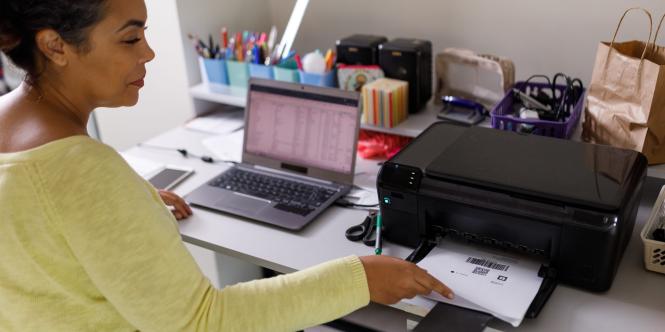
Business & Crafting Printer
Print labels, resumes, decals, and more. Edge-to-edge printing up to 12x12 inches. Includes scanner. Limit = 50 per week. Self-service only.
Printing from Your Device
Send documents and pictures to the Westerville Library's printers from your personal device.
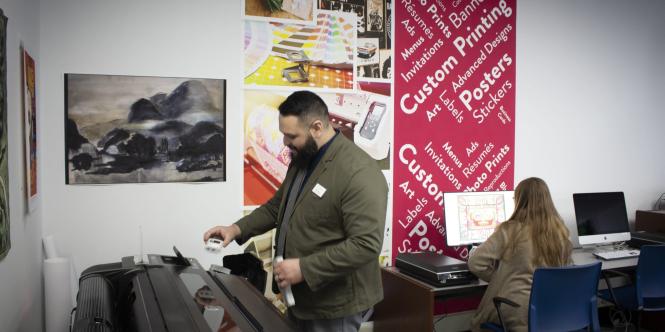
Custom Printing
Turn your ideas into reality. Create a project, then send it to the library to be printed.

Catie W.
Catie enjoys sharing her favorite audiobooks, cookbooks, and graphic novels with library visitors.

Jessica C.
A veritable walking encyclopedia of stranger-than-fiction facts, Jessica gobbles up information like it's candy.

David R.
A man of many hats, David loves to get down-and-dirty with technology and digital media.

Mindy B.
Mindy will always bring a smile to your face, even when she's concentrating on finding hard-to-get-your-hands-on books and journal articles.


